
Malware is one of the most common threats you will face online. It covers every type of malicious software designed to damage your device, steal your data, or give someone else control of your system. Viruses, trojans, ransomware, and spyware all fall under the malware umbrella.
This guide explains what malware is, the different types you should know about, how infections happen, and what you can do to protect yourself. No technical background needed.
Table of Contents
What Is Malware?
Malware is short for “malicious software.” It refers to any program or code that is intentionally designed to cause harm to a computer, network, or the person using it. The malware definition covers a broad range of threats: anything from a virus that corrupts your files to spyware that silently records your passwords.
What does malware do once it reaches your device? That depends on the type. Some malware locks your files and demands a ransom. Some quietly collects your personal information in the background. Others use your device to send spam or attack other systems. The common thread is that all of it is designed to benefit the attacker at your expense.
According to the AV-TEST Institute, over 450,000 new malware samples and potentially unwanted programs are detected every single day. Many of these are opportunistic, meaning they are designed to infect anyone they can reach, not just businesses or high-profile targets. This is why understanding malware matters regardless of how you use your computer.
Malware vs Virus: What’s the Difference?
Many people use the terms “malware” and “virus” interchangeably, but they are not the same thing. A computer virus is one specific type of malware, just as a Labrador is one specific type of dog.
The difference between virus and malware is simple: malware is the broad category, and a virus is one subcategory within it. A virus specifically works by attaching itself to a legitimate file or program and spreading when that file is shared or opened. Other types of malware (trojans, worms, spyware) spread and behave differently.
Is malware a virus? Not always. All viruses are malware, but not all malware is a virus. This is why modern security software is called “anti-malware” rather than just “antivirus.” It needs to protect against the full range of threats, not just one type.
Types of Malware
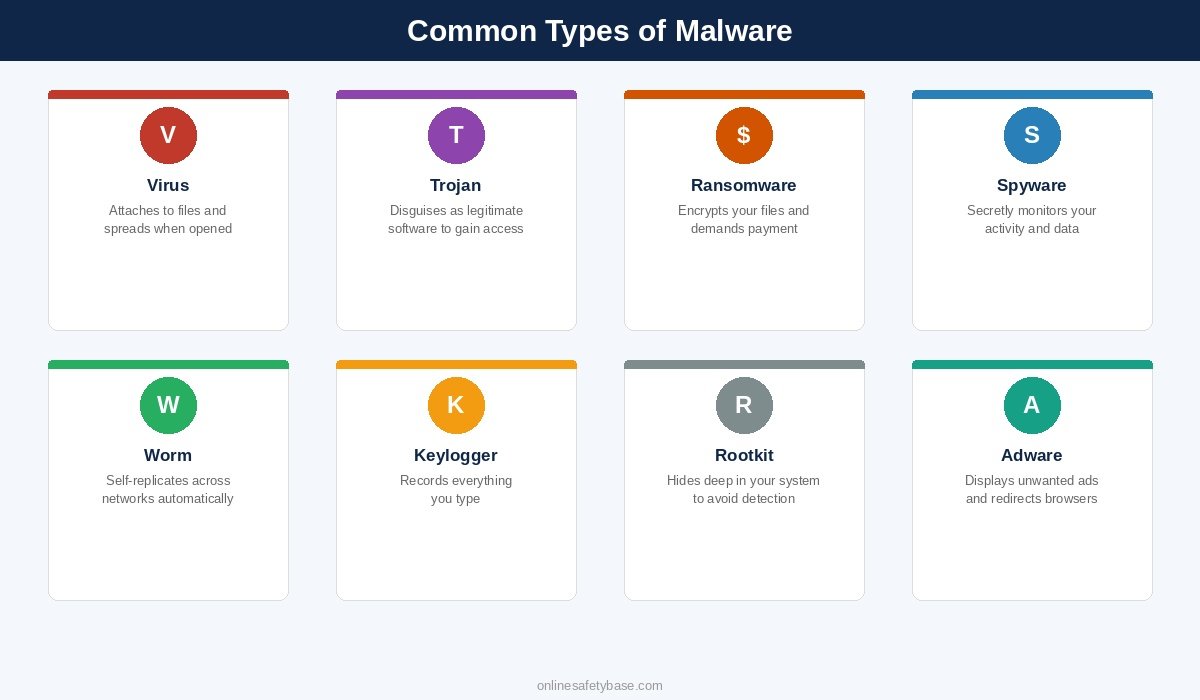
There are several distinct types of malware, each designed to do something different. Here are the most common ones you should know about.
Viruses
A computer virus attaches itself to a legitimate file or program. When you open the infected file, the virus activates and can spread to other files on your system. Viruses typically need human action to spread: opening an email attachment, running a downloaded program, or sharing an infected USB drive.
Trojans
A trojan (named after the Trojan Horse from Greek mythology) disguises itself as something useful or harmless. You might download what looks like a free game, a PDF reader, or a software update, only to find it has installed something malicious in the background. Although often called a “trojan virus,” trojans are technically not viruses. Unlike viruses, trojan malware does not replicate itself or attach to other files. It relies entirely on tricking you into installing it.
How does a trojan virus work? Once installed, it can open a backdoor to your system, giving attackers remote access to your files, webcam, or microphone. Trojans are one of the most common malware delivery methods because they exploit trust rather than technical vulnerabilities.
Ransomware
Ransomware encrypts your files so you cannot access them, then demands payment (usually in cryptocurrency) for the decryption key. Even if you pay, there is no guarantee your files will be restored.
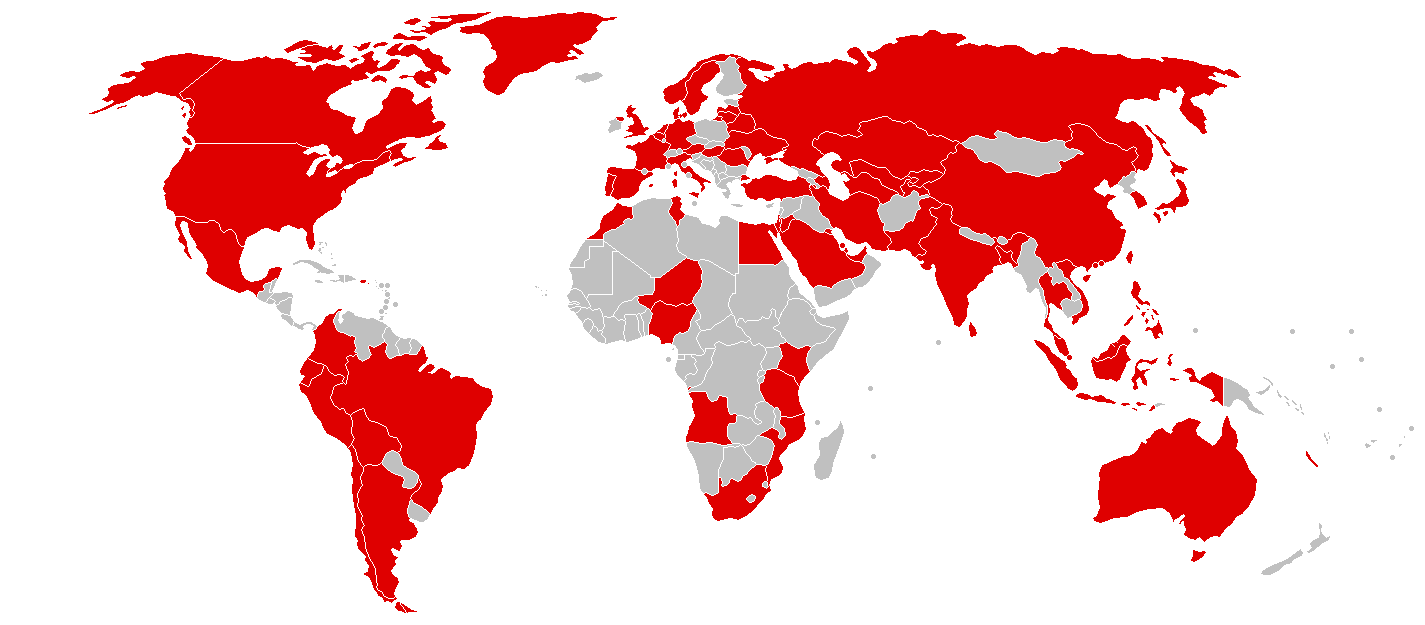
The most notorious ransomware example is WannaCry, which infected over 200,000 computers across 150 countries in 2017. It exploited a known Windows vulnerability that had already been patched. The machines that were hit simply had not installed the latest software updates.
Spyware
Spyware secretly monitors what you do on your device. It can track the websites you visit, record your login credentials, capture screenshots, and send all of this back to the attacker without you knowing.
A well-known spyware example is Pegasus, developed by the NSO Group. While Pegasus targeted journalists and activists rather than everyday users, consumer-grade spyware (sometimes called “stalkerware”) is widely available and used more often than most people realise.
Worms
A computer worm is similar to a virus but with one critical difference: it does not need you to do anything. Worms can replicate and spread across networks on their own by exploiting software vulnerabilities. Once a single device on a network is infected, the worm can reach other connected devices automatically.
Keyloggers
A keylogger records every keystroke you make. Every password, every message, every search query. The captured data is then sent to the attacker. Keyloggers can be installed through phishing emails, malicious downloads, or even physical USB devices plugged into a computer.
This is one reason why multi-factor authentication is so important. Even if a keylogger captures your password, the attacker still needs a second factor (like a code from your phone) to access your account.
Rootkits
A rootkit is a type of malware that hides deep inside your operating system, often at the level where it can avoid detection by standard antivirus tools. Rootkits give attackers ongoing access to your machine while actively concealing their presence. They are difficult to detect and even harder to remove, sometimes requiring a full system reinstall.
Adware
Adware displays unwanted advertisements on your device. It typically comes bundled with free software downloads. While adware is the least dangerous type of malware on this list, it slows your system down, clutters your screen with pop-ups, and can redirect your browser to questionable websites. Some adware also collects browsing data to serve targeted ads.
Infostealers
An infostealer is a type of malware specifically built to extract sensitive data from your device and send it to the attacker. Unlike spyware, which monitors your activity over time, infostealer malware runs quickly: it grabs stored passwords, browser cookies, autofill data, cryptocurrency wallets, and session tokens, then transmits everything in seconds.
Infostealers have become one of the most widespread threats in recent years. Variants like RedLine Stealer and Lumma Stealer are sold as ready-made tools on underground forums, making them accessible even to attackers with limited technical skills. They are commonly delivered through phishing emails, fake software downloads, and cracked programs.
What makes infostealers particularly dangerous is that they target the passwords and session cookies stored in your browser. Even if you have multi-factor authentication enabled, a stolen session cookie can let an attacker bypass it entirely by hijacking an already-authenticated session. Using a dedicated password manager instead of saving passwords in your browser reduces this risk, since password managers store credentials in their own encrypted vault rather than in a location infostealers typically target.
Malicious Browser Extensions
Browser extensions can add useful features, but malicious browser extensions are an increasingly common way to deliver malware. A harmful extension can read everything you type into your browser (including passwords), redirect your searches, inject ads into web pages, and track your browsing history. Some act as a browser hijacker, changing your homepage and default search engine without your permission.
Chrome extension malware has been found even in the official Chrome Web Store. Attackers either upload fake extensions that imitate popular tools or compromise legitimate extensions by taking over the developer’s account. In December 2024, a coordinated attack compromised over 30 legitimate Chrome extensions, affecting millions of users.
To stay safe, only install extensions you genuinely need, check the developer and reviews before installing, and periodically review your installed extensions by visiting your browser’s extension settings. Remove anything you do not recognise or no longer use.
How Do You Get Malware?
Understanding how malware spreads is the first step toward avoiding it. Most malware infections happen through one of these common methods:
- Phishing emails: the most common delivery method. You receive an email that looks legitimate, click a link or open an attachment, and malware is installed on your device.
- Malicious downloads: downloading software from unofficial sources, pirated content, or fake update prompts can install malware alongside (or instead of) the program you expected.
- Infected websites: some compromised websites can install malware simply by being visited, using what is known as a “drive-by download.” Keeping your browser and operating system updated reduces this risk significantly.
- USB drives and external devices: plugging in an infected USB stick or external hard drive can introduce malware directly to your system.
- Bundled software: free programs sometimes include adware or other unwanted software that installs automatically unless you carefully opt out during the installation process.
- Malicious browser extensions: fake or compromised browser extensions can steal data, inject ads, or hijack your browsing sessions. Even extensions from official stores are not guaranteed to be safe.
In most cases, a malware attack relies on the user doing something: clicking a link, opening a file, or installing a program. Some threats (like worms or zero-day exploits) can spread without user action, but these are far less common for home users. Awareness of the methods above is your strongest defence.
Signs of a Malware Infection
Malware is designed to stay hidden, but infections often leave visible clues. Common computer virus symptoms and signs of malware include:
- Your device is noticeably slower than usual, even when running simple tasks
- Unexpected pop-ups or ads appear frequently, especially outside your browser
- Your browser homepage or search engine changes without you doing anything
- Programs crash or freeze more often than they used to
- Unknown programs appear in your task manager or app list
- Unusual network activity or data usage when you are not actively downloading anything
- You are locked out of files or your system (a clear sign of ransomware)
- Your contacts receive messages you did not send
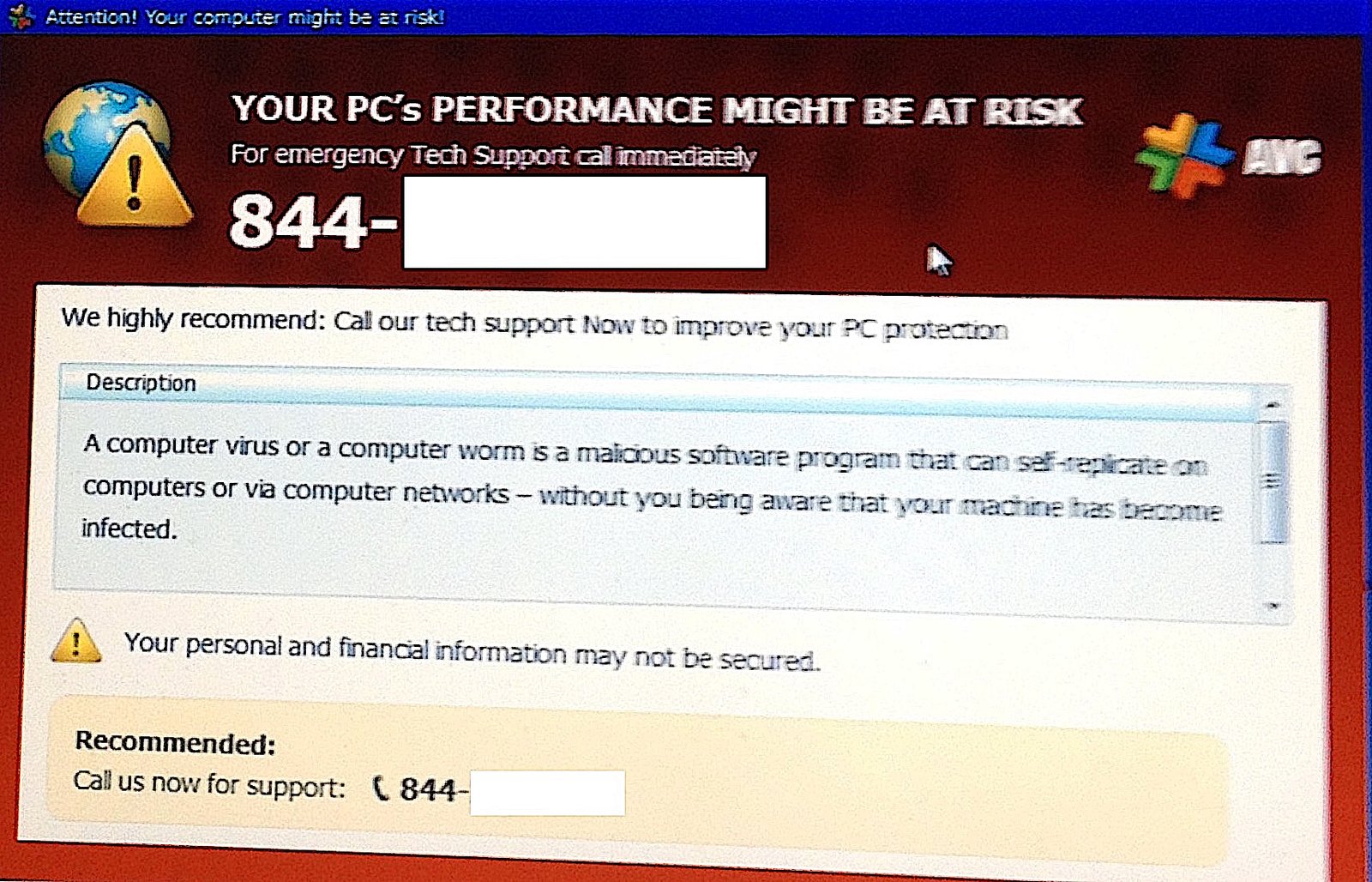
If you notice any of these symptoms, run a full malware scan immediately using your security software. If your antivirus cannot remove the infection, consider using a dedicated malware removal tool like Malwarebytes (free version available) for a second opinion.
Can Phones Get Malware?
Yes. Both Android and iPhone devices can be affected by malware, although the risk level differs between the two.
Android is more susceptible because it allows apps to be installed from outside the Google Play Store (a process called sideloading). Malicious apps, fake updates, and infected APK files are common sources of malware on Android phones. Signs of malware on phone include unexpected battery drain, higher data usage than normal, apps you did not install, and sluggish performance.
Can iPhones get malware? It is less common but not impossible. Apple’s closed ecosystem and strict App Store review process provide strong protection. However, iPhones that have been jailbroken (modified to bypass Apple’s restrictions) lose these protections entirely. There have also been rare cases of sophisticated malware like Pegasus that exploited zero-day vulnerabilities (flaws that had no patch available yet) to infect fully up-to-date iPhones without any user interaction at all.
The best protection for any phone is to install apps only from official stores, keep the operating system updated, and avoid clicking suspicious links in messages or emails.
How to Prevent Malware
You do not need to be a technical expert to protect yourself from malware. These practical steps cover the most effective ways to reduce your risk:
- Keep all software updated: security patches fix the vulnerabilities that malware exploits. Enable automatic updates wherever possible. Learn more about why software updates matter.
- Do not click links or open attachments from unknown sources: phishing emails are the number one way malware reaches home users. If something looks unexpected or urgent, verify it before clicking.
- Download software only from official sources: use the developer’s official website, the Microsoft Store, Apple App Store, or Google Play Store. Avoid downloading programs from pop-up ads or unfamiliar websites.
- Use a password manager and strong passwords: if malware steals one password, unique passwords for every account limit the damage. A password manager makes this practical.
- Enable multi-factor authentication (MFA): even if a keylogger or spyware captures your password, MFA adds a second barrier that the attacker must also bypass.
- Check your Windows security settings: make sure your firewall is on, SmartScreen is enabled, and tamper protection is active. These built-in features block many malware attempts before they reach you.
- Back up your data regularly: if ransomware encrypts your files, a recent backup means you can restore everything without paying. Use an external drive or cloud backup service.
- Be cautious with USB drives: do not plug in USB drives from unknown sources. Attackers have been known to leave infected drives in public places, counting on curiosity to do the rest.
- Review your browser extensions: only install extensions you genuinely need, check the developer and reviews first, and periodically remove any you no longer use. Malicious browser extensions are a growing threat that many people overlook.
Is Windows Defender Good Enough?
Windows Defender (now called Microsoft Defender Antivirus) has improved significantly in recent years. For most home users, it provides solid baseline protection against common malware threats. It runs quietly in the background, updates automatically through Windows Update, and includes real-time protection, cloud-based detection, and ransomware protection through controlled folder access.
Independent testing labs such as AV-TEST consistently rate Windows Defender well for both protection and usability. It catches the vast majority of known malware and performs on par with many paid alternatives.
That said, is Windows Defender good enough on its own? For most people, yes, as long as you also follow the prevention steps above. No antivirus software can protect you if you disable security features, ignore updates, or click every link that lands in your inbox. The combination of updated software, good habits, and Windows Defender covers the threats that most home users are likely to face.
If you want an extra layer of protection, tools like Malwarebytes can be run alongside Windows Defender as a secondary scanner without conflicts.
The Bottom Line
Malware is a broad category that includes viruses, trojans, ransomware, spyware, worms, keyloggers, rootkits, adware, infostealers, and malicious browser extensions. Each type works differently, but they all rely on a combination of software vulnerabilities and human behaviour to reach your device.
The good news is that preventing malware does not require expensive tools or technical knowledge. Keep your software updated, be cautious with links and downloads, use strong unique passwords with MFA enabled, and make sure your built-in security features are turned on. These steps alone block the vast majority of malware attacks that target home users.
For more guidance from official sources, visit the Cybersecurity and Infrastructure Security Agency (CISA) guide on protecting against malicious code.


