
Most Windows PCs ship with default settings tuned for convenience rather than security. A few targeted changes can close the most common gaps without any technical expertise required.
This guide covers 8 essential Windows security settings to check and enable. Each one addresses a specific threat, and together they cover the basics any Windows user should have in place.
Table of Contents
- 1. Enable BitLocker Encryption
- 2. Check Your Windows Firewall Settings
- 3. Keep Your Software Updated
- 4. Set User Account Control to Always Notify
- 5. Disable Remote Desktop
- 6. Enable Windows Defender SmartScreen
- 7. Enable Tamper Protection
- 8. Enable a Password-Protected Screensaver
- 9. The Bottom Line
1. Enable BitLocker Encryption
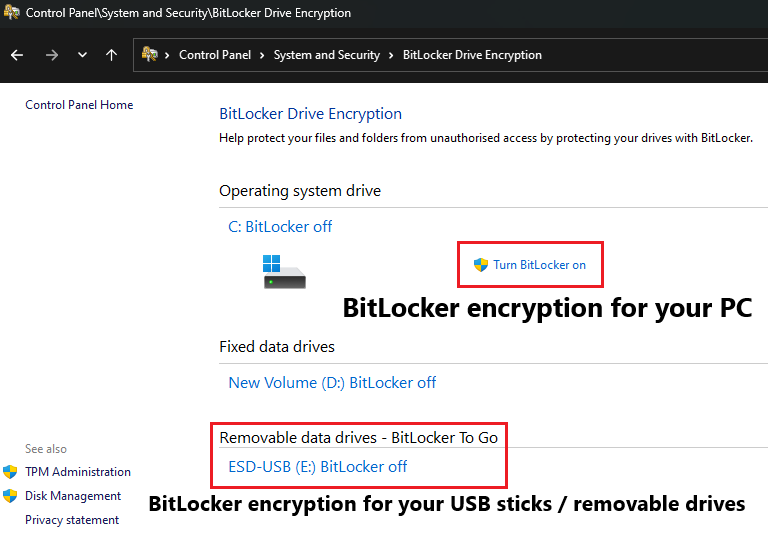
BitLocker encryption protects your data by scrambling your entire hard drive so it cannot be read without your password or encryption key. Without it, someone who gets physical access to your computer or removes the hard drive can read all your files on another machine, bypassing your Windows login entirely. BitLocker also works on removable drives like USB sticks and portable hard drives, protecting them if they are lost or stolen.
Why it matters: Without encryption, your files can be accessed by anyone with physical access to your computer or its storage devices.
How to enable it:
- Go to Control Panel > System and Security > BitLocker Drive Encryption
- Turn on BitLocker and follow the steps to secure your drive with a password or encryption key.
An instructional video by Dell on how to set up BitLocker.
2. Check Your Windows Firewall Settings
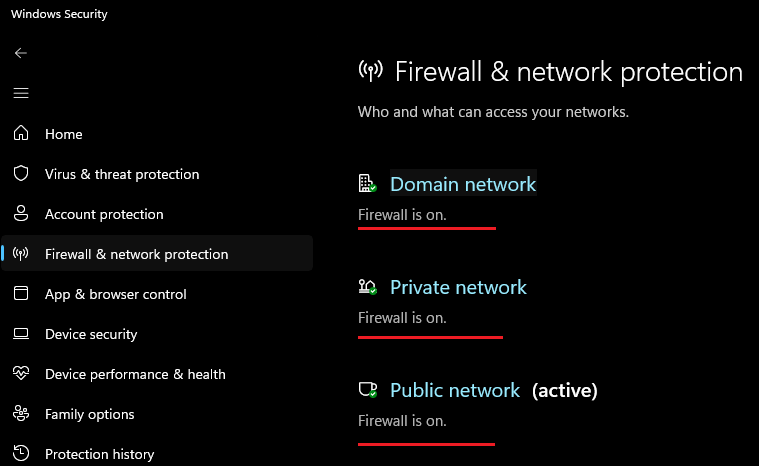
The Windows Firewall monitors and controls incoming and outgoing network traffic, blocking connections that look unauthorised or suspicious. It is enabled by default, but it is worth confirming it is actually on and active for all network types.
Why it matters: The Windows Firewall acts as your first line of defence, blocking unauthorised access attempts from outside your network.
How to verify it:
- Go to Settings > Privacy & Security > Windows Security > Firewall & Network Protection.
- Ensure the firewall is turned on for all three network profiles: Domain, Private, and Public.
3. Keep Your Software Updated
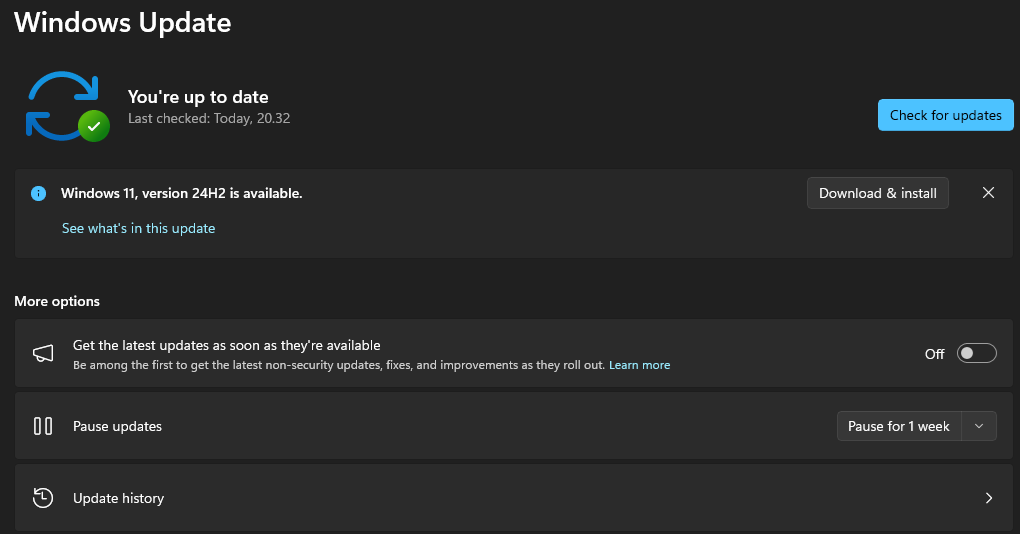
Security patches fix vulnerabilities that attackers can exploit. Windows 11 enables automatic updates by default, but updates can be paused, failed, or accidentally turned off. It is worth checking that updates are actually installing on schedule.
Learn more about the importance of updating softwareWhy it matters: Outdated software is more vulnerable to attacks.
How to verify:
- Open Settings > Windows Update and check for any pending or failed updates.
- Ensure that Pause updates is turned off.
- Review your update history to confirm recent installations.
4. Set User Account Control to Always Notify
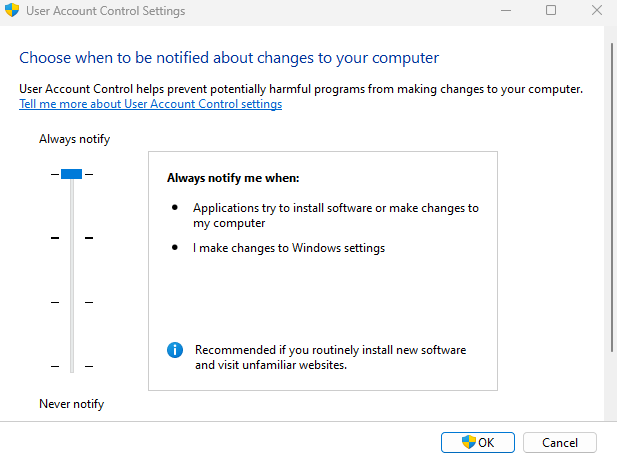
User Account Control (UAC) prompts you to confirm or enter administrator credentials whenever a program tries to make changes to your system. When set to its highest level, it catches attempts by malware to silently install or modify software without your knowledge.
Why it matters: Prevents unauthorised programs from being installed, especially by malware running in the background.
How to enable it:
- Search for UAC in the Start menu.
- Open Change User Account Control settings.
- Set the slider to Always Notify to ensure you’re prompted every time an app tries to make changes.
5. Disable Remote Desktop
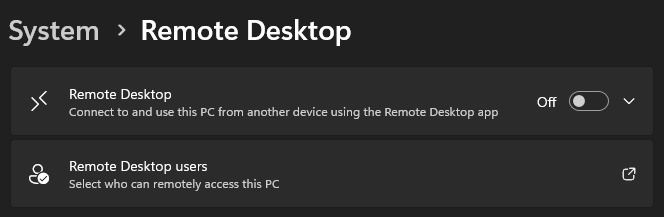
Remote Desktop lets other users connect to your machine over the network. Most home users never need this feature, and leaving it on creates an attack surface that attackers actively scan for. If you do not use it, turn it off.
Why it matters: Attackers can gain unauthorised remote access to your computer through open Remote Desktop connections.
How to disable it:
- Go to Settings > System > Remote Desktop.
- Turn Remote Desktop off.
6. Enable Windows Defender SmartScreen
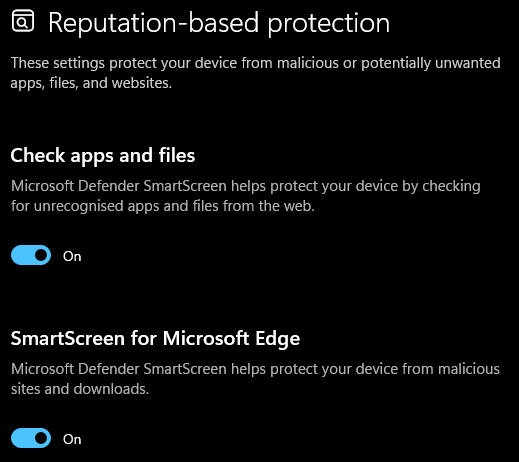
Windows Defender SmartScreen checks websites and downloaded files against a database of known malicious content. If you try to visit a harmful site or run a suspicious file, SmartScreen warns you or blocks it outright.
Why it matters: Protects you from accidentally visiting harmful websites or running dangerous files you downloaded.
How to enable it:
- Go to Settings > Privacy & Security > Windows Security > App & Browser Control > Reputation-based protection.
- Ensure that all options on this page are turned on.
7. Enable Tamper Protection
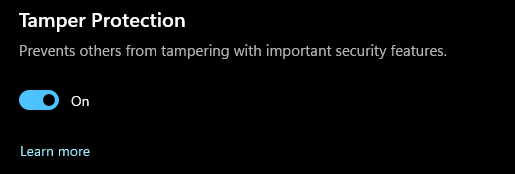
Tamper Protection prevents malware and unauthorised users from disabling Windows security features like your antivirus and firewall. Without it, certain types of malware will attempt to turn off your defences as one of their first actions.
Why it matters: Keeps your Windows Defender settings and other security tools active even if malware tries to disable them.
How to enable it:
- Go to Settings > Privacy & Security > Windows Security > Virus & Threat Protection > Virus & Threat Protection Settings.
- Ensure that all options on this page are turned on.
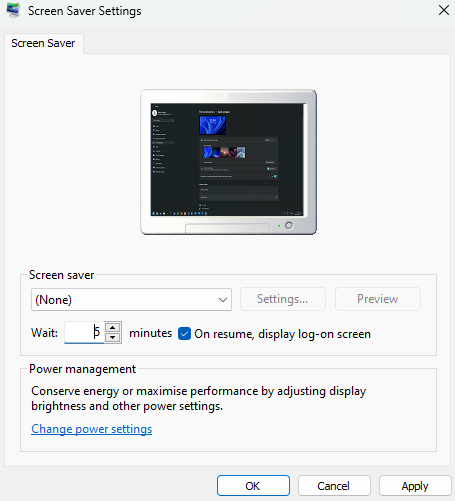
8. Enable a Password-Protected Screensaver
A password-protected screensaver locks your computer automatically after a set period of inactivity. Anyone who sits down at your machine while you are away will be met with a login screen rather than direct access to your files and accounts.
Why it matters: Prevents unauthorised access when you step away from your computer, whether at home or in a shared environment.
How to enable it:
- Right-click your desktop and select Personalize > Lock Screen > Screen Saver.
- Check On resume, display log-on screen and set a short wait time (5 minutes is a sensible default).
The Bottom Line
These 8 Windows security settings address the most common ways home computers get compromised: unencrypted drives, open network ports, outdated software, silent installations, and unattended access. None of them require technical knowledge to enable, and most take under a minute to check.
Go through this list once, confirm each setting is in place, and your Windows PC will be in considerably better shape than the default out-of-the-box configuration.


