
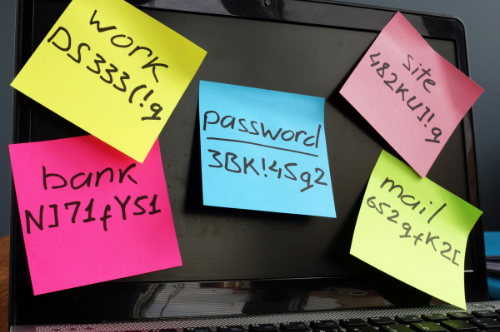
A password manager is a tool that generates, stores, and fills in your passwords for you. You remember one master password; the manager handles everything else. If you have more than a handful of online accounts, it’s one of the most practical security tools you can use.
This guide covers what a password manager is, how it works, whether they’re actually safe, and how to get started with one.
Table of Contents
What Is a Password Manager?
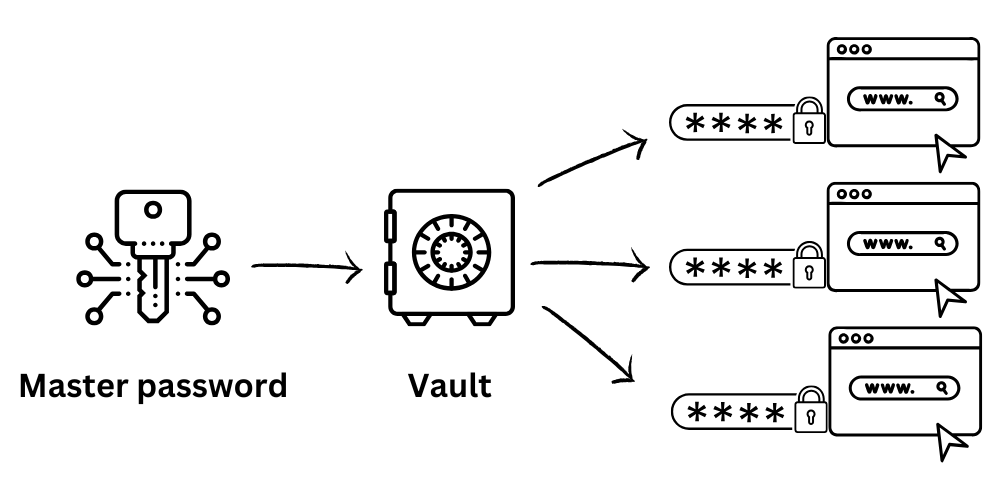
A password manager is software that stores all your login credentials in an encrypted vault. Instead of trying to remember a different password for every account, you create one strong master password to unlock the vault. The manager does the rest: it saves new passwords as you create accounts, fills them in automatically when you log in, and can generate new ones that are long and random.
Password managers come as standalone apps, browser extensions, or built-in features of operating systems. Most sync across your devices so your passwords are available on your phone, laptop, and tablet without any extra effort.
How Does a Password Manager Work?
When you save a password, the manager encrypts it before storing it. The encryption key is derived from your master password, which the manager never stores or transmits. This means even the company that built the software cannot read your passwords. When you visit a site, the manager decrypts only the credentials you need and fills them in.
The core things a password manager does:
- Generates strong, random passwords for new accounts
- Stores and encrypts all your credentials in one place
- Auto-fills login forms so you never have to type passwords manually
- Syncs across your devices automatically
Why Use a Password Manager?
The average person manages dozens of online accounts. Keeping track of that many passwords without a manager almost always leads to one of two bad habits: reusing the same password across sites, or picking passwords that are easy to remember but easy to crack.
Password reuse is one of the most common reasons people get hacked. When a site gets breached and its password database leaks, attackers immediately try those credentials on other popular services. If you reused the same password, they get into those accounts too. A password manager eliminates this risk by giving each account its own unique password.
Beyond security, there’s a practical benefit. You no longer need to reset forgotten passwords or struggle to remember which variation of a phrase you used for a particular site. The manager fills everything in automatically. Combined with a strong passphrase as your master password, you get better security with less effort than managing passwords manually.
Are Password Managers Safe?
The short answer is yes, with the right choice of provider.
The main concern most people have is putting all their passwords in one place. It feels like a single point of failure. But the way reputable password managers are built, that vault is encrypted with your master password before anything ever leaves your device. Even if someone broke into the company’s servers, they would get only encrypted data that is useless without your master password.
The key feature to look for is zero-knowledge architecture. This means the provider cannot read your passwords, even if they wanted to. Reputable managers are also independently audited by security researchers, which gives you external verification that the claims hold up.
What about device compromise? Most password managers add multi-factor authentication as a second layer of protection. Even if someone had your master password, they would still need access to your phone or a hardware key to get in.
Some well-established options worth considering:
- 1Password (Windows, Mac, iOS, Android)
- LastPass (iOS, Android, and browser extensions for Windows, Mac, Linux)
- KeePass (Open-source and available for Linux, Windows, Mac, and Android)
Additional Features Many Password Managers Offer
Most password managers go beyond storing login credentials. These additional features are worth knowing about when choosing a tool.
Secure notes and document storage
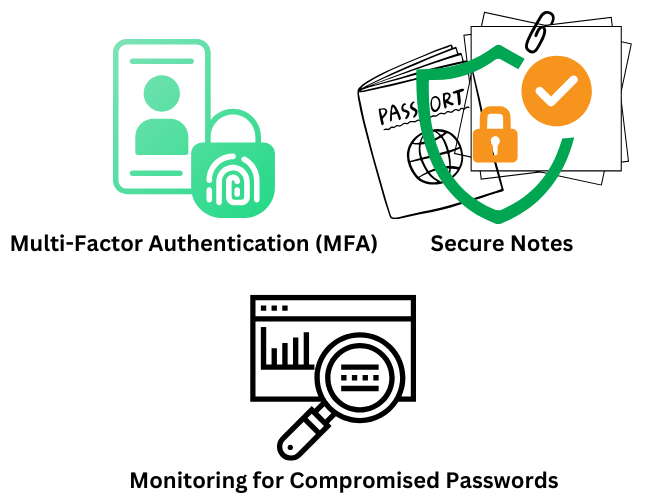
Many managers let you store more than passwords. You can save PINs, software licence keys, passport details, or other sensitive information in the same encrypted vault.
Multi-factor authentication (MFA) support
Most managers integrate with MFA apps or hardware keys. Some can even act as an authenticator themselves, storing your two-factor codes alongside your passwords.
Breach monitoring
Many managers check your stored credentials against known data breach databases. If a site you use is compromised and your email or password appears in the leaked data, you get an alert so you can change it before it’s misused.
Password health reports
Some tools audit your vault and flag weak, reused, or old passwords. It’s a useful way to identify accounts that need attention without checking them manually one by one.
How to Use a Password Manager
Getting started is simpler than most people expect. The process is the same regardless of which tool you choose.
1. Pick a manager and create an account
Choose one of the established options and sign up. During setup, you’ll create your master password. Make it long and memorable. A passphrase works well here since it’s both strong and easier to remember than a random string of characters.
2. Install the browser extension
The extension is what makes auto-fill work. Once installed, it detects login forms and fills in your credentials automatically.
3. Save passwords as you go
When you log in somewhere, the manager will prompt you to save that password. Over time, your vault fills up naturally without any manual import needed.
4. Let it generate new passwords
When you create a new account or change an existing password, use the manager’s generator. It will create a long, random password and save it automatically. You never need to think up or memorise a new password again.
5. Enable multi-factor authentication
Once your vault has credentials in it, protect the master account with MFA. This is the single most important step after setting up the manager itself.
The Bottom Line
A password manager solves one of the most common and preventable security problems: weak or reused passwords. It takes a task that most people handle badly (managing dozens of unique passwords) and automates it almost entirely.
For most people, the setup time is under an hour. After that, logging in to sites becomes faster than before, your accounts are protected by passwords that are genuinely hard to crack, and you stop being the person who resets their password every few weeks because they forgot it.
Learn more about strong passwords and password managers at https://www.cisa.gov/secure-our-world/use-strong-passwords, published by CISA. CISA is the operational lead for federal cybersecurity and the national coordinator for critical infrastructure security and resilience in the U.S.

