
Multi-factor authentication (MFA) is a security method that requires more than just a password to access an account. Even if someone steals your password, they cannot get in without passing a second check. It’s one of the most effective steps you can take to protect your online accounts.
This guide covers what MFA is, how it differs from 2FA, whether it’s actually safe, and how to turn it on for your accounts.
Table of Contents
What Is Multi-Factor Authentication (MFA)?
Multi-factor authentication is a login process that requires two or more forms of proof before granting access to an account. A password alone counts as one factor. MFA adds at least one more: something you have (like your phone), something you are (like a fingerprint), or a time-sensitive code from an app.
The reason this matters is straightforward. Passwords get stolen through phishing emails, data breaches, and malware. Once someone has your password, a single factor is all that stands between them and your account. MFA means a stolen password on its own is not enough. The attacker would also need access to your phone, your fingerprint, or your hardware key.
What Is 2FA?
2FA stands for two-factor authentication. It is a specific form of MFA that uses exactly two verification steps: your password plus one additional factor. Most people encounter 2FA as a six-digit code sent to their phone after entering a password.
2FA is the most common implementation of multi-factor authentication and what most services mean when they refer to “extra security” in your account settings. If you have ever received a login code via text message, you have used 2FA.
MFA vs 2FA: What’s the Difference?
2FA is a subset of MFA. Every 2FA system is MFA, but not every MFA system is 2FA.
- 2FA requires exactly two factors from two different categories. For example: a password plus a code from an authentication app.
- MFA can require two or more factors. High-security systems sometimes use three: a password, a hardware key, and a fingerprint.
For most people and most accounts, 2FA provides more than enough protection. The terms are often used interchangeably in everyday contexts, and the distinction only matters when a system requires more than two steps.
The Three Types of Authentication Factors
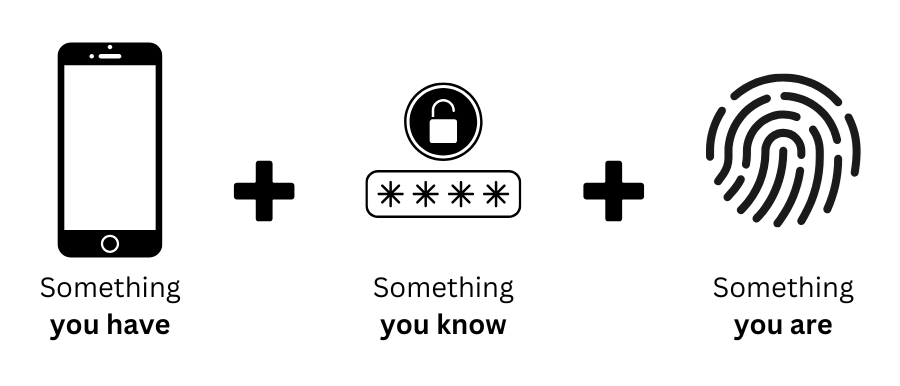
All MFA methods draw from three categories:
Something you know
Information only you should have, such as a password, PIN, or answers to security questions.
Something you have
A physical item in your possession, such as your smartphone, a hardware security key, or a smart card.
Something you are
A biological trait unique to you, such as a fingerprint, face scan, or voice recognition.
MFA works by combining factors from at least two of these categories. Using two things from the same category (for example, a password plus a security question) is weaker because both can be obtained through the same type of attack.
Is Two-Factor Authentication Safe?
Yes. Even the weakest form of 2FA, an SMS code, is significantly safer than a password alone. It forces an attacker to compromise two separate things rather than one.
That said, not all 2FA methods are equal:
SMS codes are the most common but the least secure. In a SIM-swapping attack, someone convinces your phone carrier to transfer your number to a new SIM they control, letting them receive your codes. This is relatively rare but does happen. SMS 2FA is still much better than no 2FA.
Authentication apps (like Google Authenticator or Authy) generate codes locally on your device. There is no SMS to intercept, making them more resistant to SIM-swapping.
Hardware security keys (like YubiKey) are the strongest option. They require physical possession of the key and are resistant to phishing because they only respond to the legitimate domain of the site you are logging into.
For most people, an authentication app is the best balance of security and convenience. Use a hardware key for accounts where the stakes are highest: your primary email, banking, or anything that could be used to reset other accounts.
Different Ways to Use MFA
SMS or email codes
A one-time code is sent to your phone number or email address. Quick to set up and widely supported, but the weakest option due to SIM-swapping and email compromise risks.
Authentication apps
Apps like Google Authenticator, Microsoft Authenticator, or Authy generate time-based codes that expire every 30 seconds. More secure than SMS since the codes never leave your device.
Hardware security keys
A physical device (like YubiKey) that you plug in or tap to authenticate. The most secure consumer option available and completely phishing-resistant.
Biometrics
Fingerprint or face recognition, typically on smartphones. Convenient and reasonably secure for everyday use.
For most accounts, an authentication app is the right choice. SMS works as a fallback if an app is not available. Reserve hardware keys for your most critical accounts.
Read more about password managersHow to Enable Two-Factor Authentication
Most major services support 2FA, but you usually have to switch it on yourself. Some platforms enable it by default for new accounts; most do not. Treat enabling 2FA as a standard step whenever you create a new account anywhere.
The general process is the same across most platforms:
- Go to your account’s security or privacy settings.
- Find the option labelled “Two-Factor Authentication,” “2FA,” or “Multi-Factor Authentication.”
- Choose your preferred method: authentication app, SMS, or security key.
- Follow the setup steps to link your device or app.
- Save any backup codes the service provides. These are one-time codes you can use if you lose access to your authenticator device.
Start with the accounts that matter most: your primary email address (since it can be used to reset every other account), your bank, and any account tied to payment information. Once those are covered, work through the rest.
The Bottom Line
Multi-factor authentication is one of the most effective security measures available, and most people can set it up in a few minutes. A stolen password stops being enough to break into your account the moment you add a second factor.
Enable MFA on your email, banking, and social media accounts as a minimum. Use an authentication app rather than SMS where possible, and consider a hardware key for anything critical. Paired with a password manager, these two steps cover the most common ways accounts get compromised.
